USGS 1 meter LiDAR
Starting in Pathloss 6.01.00, USGS 1 meter LiDAR data can be automatically downloaded and configured for the United States.
About the Data
The LiDAR data is obtained from USGS sources https://apps.nationalmap.gov/lidar-explorer/#/. Data classified as noise, high-tension lines, and other anomalies is removed. The resulting GeoTIFF files have a resolution of 1 meter and a vertical accuracy of approximately 0.5 meters relative to the original data. This allows for very detailed and accurate terrain profile generation.
Recommended Settings
We recommend using the 1/3" NED for the Managed Terrain Data and NLCD/LiDar for most applications:
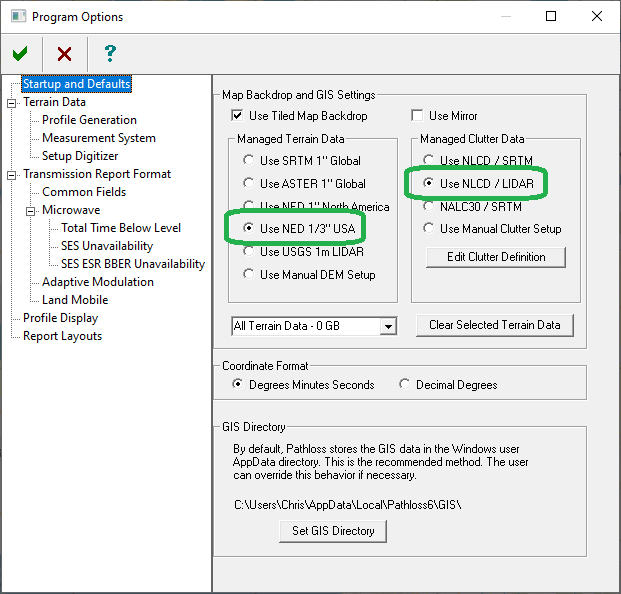
It is not recommended to select USGS 1-meter LiDAR as the Managed Terrain Data. This option is provided for cases where the vertical datum does not match that of the USGS NED data, and terrain profile generation must use LiDAR data instead of NED.
Managed Clutter must be disabled when using USGS 1-meter LiDAR as the Managed Terrain Data.
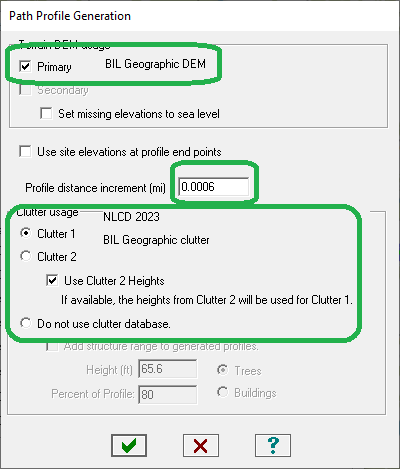
The Profile Generation settings should be configured as follows. The profile distance increment should be set to 0.0006 miles (1 meter) in all cases.
In the Program Options:
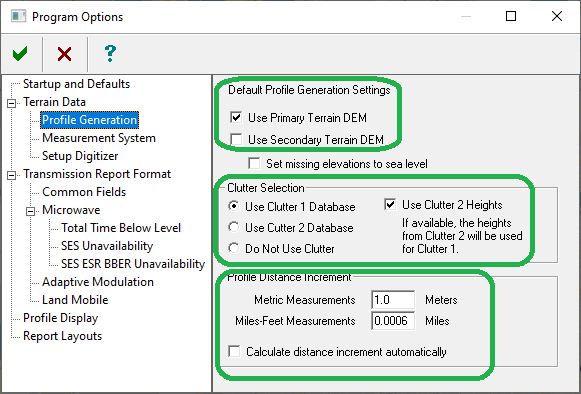
In the Terrain Data Module:
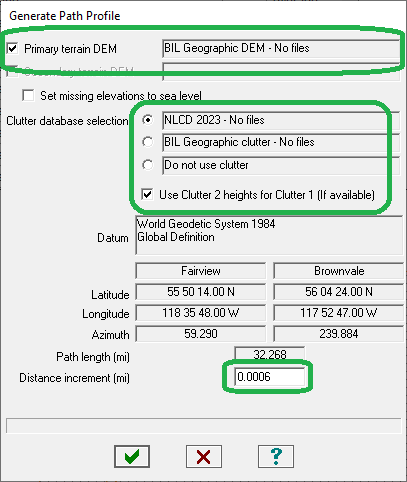
In the Profile Generation for Auto Designer:
Downloading
The selected terrain sources can now be downloaded using the automatic download  :
:
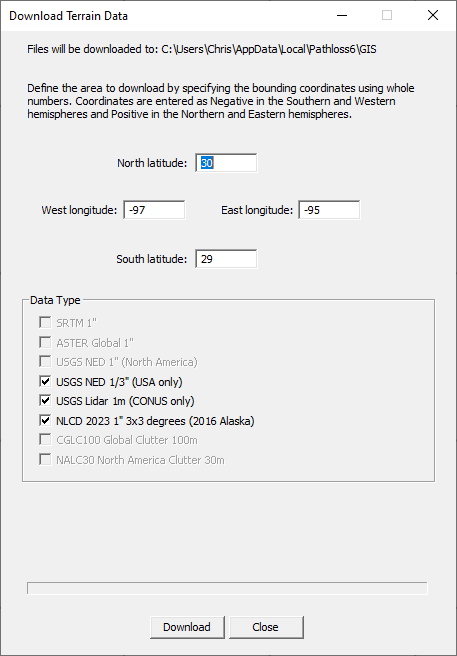
There is a limit on the download area, which corresponds to the current view extents of the network. If the east–west longitude span exceeds 1 degree, the USGS LiDAR option in the Download Terrain Data window will be disabled. In this case, zoom the display to select a smaller area. It may be necessary to pan the display and perform multiple downloads to obtain the required data for longer links.
Verifying Profiles
Because some LiDAR points may contain elevations from features such as power transmission lines or other unclassified noise, it may be necessary to verify the resulting path profile.
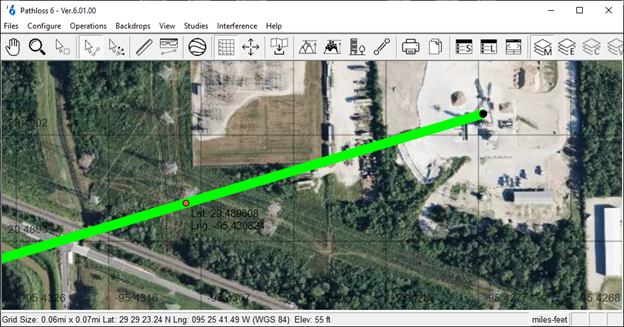
There are two ways to verify an obstruction in Pathloss. The first is to visualize the LiDAR data in the Network window. The  toolbar button will generate a terrain background using the clutter data configured for Clutter 2. Following the setup described above, this will correspond to the USGS 1-meter LiDAR data. The example below shows a profile crossing a power transmission line.
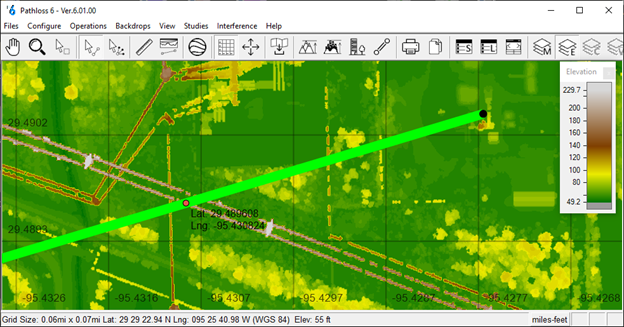
Selecting the point in question in the Terrain Data or Antenna Height modules will place a marker in the Network Display at the point’s coordinates.
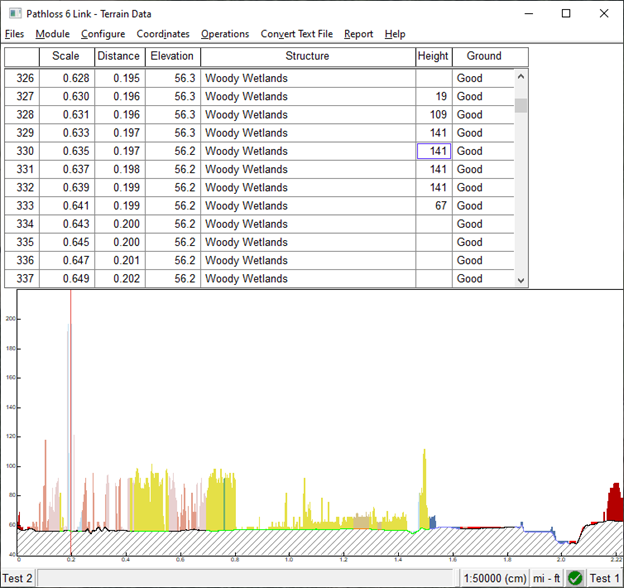
Using either the visualized USGS 1-meter LiDAR data or the satellite view (Ctrl+9), users can determine whether the point can be safely removed from the profile using the Ctrl+Y command in the Terrain Data module.